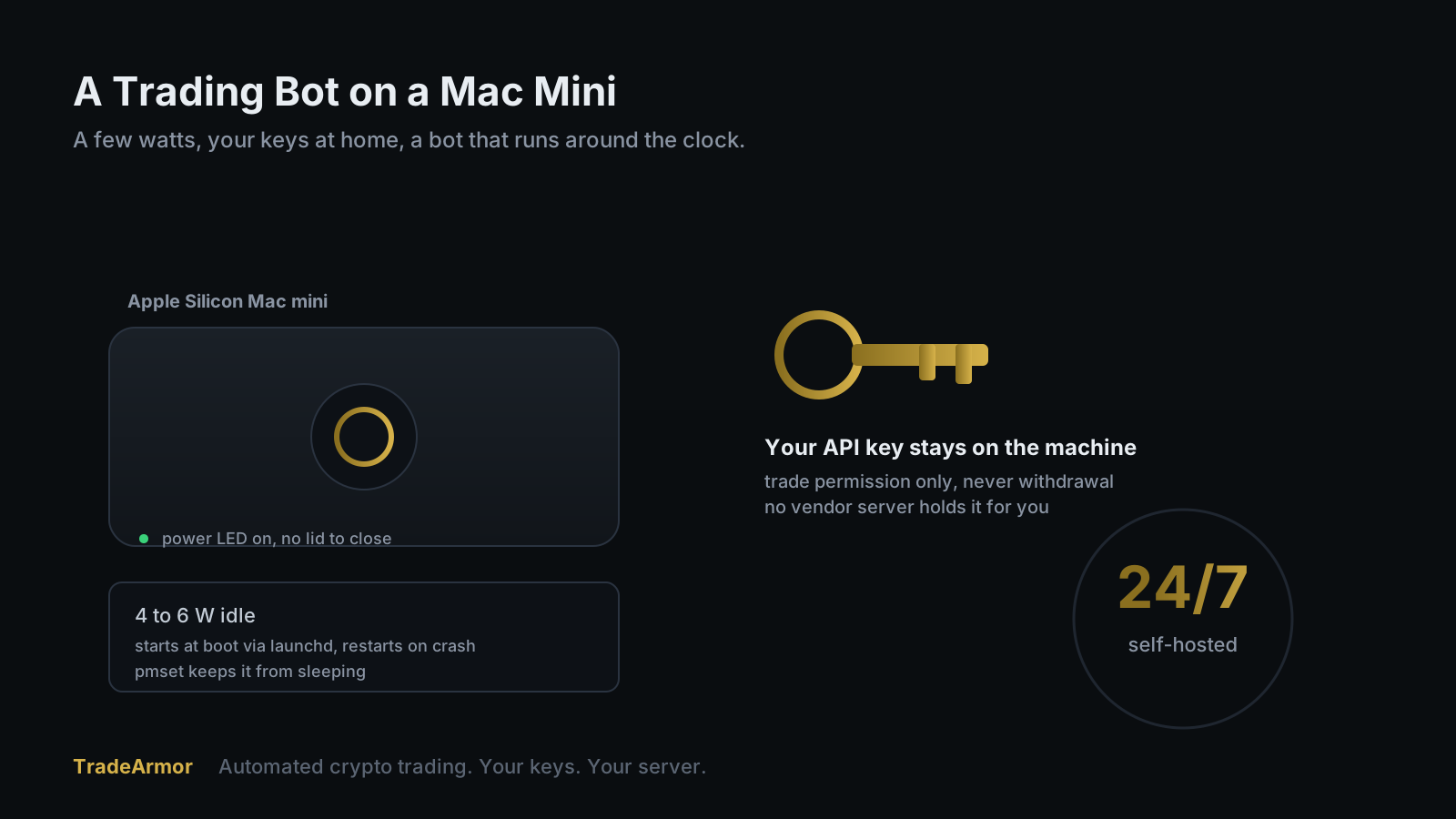
You have a strategy, an exchange account, and a job that does not let you watch charts all day. The honest version of automated trading is a bot that just runs, buys on the rules you set, and lets you see exactly what it did in the morning. The dishonest version is leaving that bot on a laptop that sleeps the moment you close the lid, or paying a SaaS service to run it on a server that holds your API keys for you. A lot of people land on a third option once they notice the obvious: my Mac mini is on 24/7 anyway. Give it a job.
A trading bot Mac mini setup is close to the ideal home for this workload. The machine is quiet, it sips power, and an Apple Silicon Mac mini is happy to sit on a shelf and run for months without complaint. This guide covers the install on macOS, the part that trips Mac users up specifically (stopping the machine from sleeping), wrapping the bot in a launchd service so it survives a reboot, the real power cost, and how to reach the dashboard from your phone. The bot we will use is TradeArmor, a self-hosted crypto trading platform that runs on your own hardware where your API keys never leave your machine. It is not only a DCA bot. It ships built-in BTC/USDC signals with a multi-year track record, 15 real-time technical indicators, a plain-English AI strategy builder, plus grid, futures, copy trading, backtesting, paper trading, and tax exports. On a Mac mini you run the same platform, on a box you already own.
Why a Trading Bot Mac Mini Build Makes Sense
A trading bot is not a demanding program. It holds a connection to your exchange, waits for a signal or a price trigger, runs some math, and occasionally places an order. Most of the time it is idle. TradeArmor's stated requirement is Python 3.10 or newer and 512 megabytes of RAM, which any Mac mini from the last decade clears without noticing. The base Apple Silicon model has more memory than the bot will ever touch.
What the workload actually demands is uptime. A bot that is offline when the dip arrives is worse than no bot, because you planned around it being there. The Mac mini suits that better than a laptop for one structural reason: it has no lid to close and no battery to manage, so it lives on AC power and stays put. The people who already run a Mac mini as a Plex box, a Home Assistant host, or a file server know the appeal. A bot is one more low-power service on a machine that is already on.
The other reason is custody, and it is the one that matters most. Run the bot on a Mac mini in your house and your exchange API key sits in a local config file on a machine you can physically touch. It is not on a vendor's server. There is no company holding a database of customer keys waiting to be breached, which has happened to SaaS bots before and cost their users real money. Self-hosting on a Mac mini is self-custody with a power cord. If you want the broader version of that argument, the best self-hosted crypto trading bot guide lays out the whole case, and you can see every mode the engine runs on the TradeArmor feature list.
What to Install on macOS First
Start with Python. This is the one place macOS makes you do a little work, because modern macOS no longer ships a Python you should build on. The clean path is Homebrew. If you do not already have it, install Homebrew, then install Python.
/bin/bash -c "$(curl -fsSL https://raw.githubusercontent.com/Homebrew/install/HEAD/install.sh)"
brew install python
That gives you a current Python 3, well past the 3.10 minimum, managed separately from anything Apple ships. Confirm it with python3 --version. If you would rather not use Homebrew, the official installer from python.org works just as well, and either choice runs natively on Apple Silicon without Rosetta.
Next, isolate the bot's dependencies in a virtual environment. This keeps the bot's packages from colliding with anything else on the machine, and it is good hygiene whether or not the operating system forces it.
python3 -m venv ~/tradearmor-env
source ~/tradearmor-env/bin/activate
With the environment active, your prompt changes and pip installs land inside it instead of in the system Python. That is the whole reason it exists.
Installing and Running the Bot
TradeArmor ships as a ZIP download, not a package you compile. Unpack it, install its requirements into the virtual environment you just made, and start it.
cd ~
unzip tradearmor-*.zip -d tradearmor
cd tradearmor
pip install -r requirements.txt
python main.py
That last command starts the bot and its dashboard on port 8080. From any device on your home network, open http://<your-mac-mini-name>.local:8080/setup in a browser and the setup wizard walks you through connecting your exchange and picking a strategy mode. Six exchanges are supported out of the box through the CCXT framework, so the Mac mini does not care whether you trade on Binance US, Bybit, or another venue.
When the wizard asks for your exchange API key, give it trade permission only. Not withdrawal. Not transfer. A bot needs to place and cancel orders, nothing more, and a key with withdrawal rights is a key that can empty the account if anything ever goes wrong. This rule is not Mac-specific, it is the whole self-custody argument in one setting, and it is covered in depth in the guide on running a crypto trading bot without API key risk.
Stop the Mac Mini From Sleeping
Here is the step Mac users skip until it costs them a trade. By default a Mac mini goes to sleep after a stretch of inactivity, and a sleeping Mac is a Mac whose bot is no longer connected to the exchange. The bot did not crash. The machine just took a nap, and the order that should have fired did not.
The fix is one line. Tell macOS not to sleep while it is on power, which a Mac mini always is.
sudo pmset -c sleep 0
The -c flag means "while on charger," and sleep 0 disables system sleep. You can confirm the setting with pmset -g. There is also caffeinate, a built-in command that holds the machine awake for the life of a process, and caffeinate -i python main.py works fine for a quick test. For a box meant to run for months, the pmset setting is the better tool, because it survives reboots and does not depend on a wrapper process staying alive. Set it once and move on.
While you are in here, open System Settings, go to Energy, and enable "Start up automatically after a power failure." A brief outage should not leave your bot dark until you happen to walk past the machine.
Keep It Running 24/7 With launchd
Starting the bot with python main.py works until the Terminal window closes, the Mac reboots, or the process exits once at 3am. Then it is just off, and you find out when the move you wanted already happened. The Mac equivalent of a proper service is launchd, the same system that starts everything else on macOS at boot.
Write a small property list file at ~/Library/LaunchAgents/io.tradearmor.bot.plist:
<?xml version="1.0" encoding="UTF-8"?>
<!DOCTYPE plist PUBLIC "-//Apple//DTD PLIST 1.0//EN" "http://www.apple.com/DTDs/PropertyList-1.0.dtd">
<plist version="1.0">
<dict>
    <key>Label</key>
    <string>io.tradearmor.bot</string>
    <key>ProgramArguments</key>
    <array>
        <string>/Users/you/tradearmor-env/bin/python</string>
        <string>/Users/you/tradearmor/main.py</string>
    </array>
    <key>WorkingDirectory</key>
    <string>/Users/you/tradearmor</string>
    <key>RunAtLoad</key>
    <true/>
    <key>KeepAlive</key>
    <true/>
    <key>StandardOutPath</key>
    <string>/Users/you/tradearmor/data/bot.log</string>
    <key>StandardErrorPath</key>
    <string>/Users/you/tradearmor/data/bot.err</string>
</dict>
</plist>
Replace you with your actual username, then load it.
launchctl load ~/Library/LaunchAgents/io.tradearmor.bot.plist
RunAtLoad starts the bot when you log in, and KeepAlive restarts it automatically if it ever exits. Check on it any time with launchctl list | grep tradearmor, and read what it is doing in the log file you pointed it at. That is the entire feature request: the bot runs, you do not have to.
One Mac-specific note. A LaunchAgent runs when a user is logged in, which is the normal setup for a Mac mini you also use. If you want the bot to start before any login, on a truly headless machine, that is a LaunchDaemon in /Library/LaunchDaemons instead, with the same keys. For most people the agent is the right call, and it pairs cleanly with the pmset setting above so the machine neither sleeps nor drops the process.
Power, Heat, and Remote Access
The running cost of a bot on a Mac mini is close to a rounding error. An Apple Silicon Mac mini idles at roughly 4 to 6 watts, and a trading bot barely lifts that, because the work is bursty and small. Run it continuously and you are looking at somewhere around 35 to 53 kilowatt-hours over a year, which lands at a few dollars at typical residential rates. Apple publishes the official power figures if you want the exact numbers for your model. Compare any of that to a SaaS bot subscription plus a charting subscription plus a separate signal service, the stack a lot of traders end up paying, and the math is not close.
Heat is a non-issue. The Mac mini rarely loads its CPU for this workload, the fan stays quiet, and there is nothing to manage. Put it on a shelf and forget it is there.
For remote access, keep the dashboard on your home network and reach it over a VPN back to the house rather than exposing port 8080 to the open internet. A bot's dashboard is not something you want a stranger probing. A Cloudflare Tunnel is a reasonable alternative that avoids opening a port at all, and if you already run a homelab you probably have a VPN path home already. The dashboard works over either without special configuration, and it installs to your phone home screen as a web app so it feels like a native app you check once a day.
The same self-hosted, low-power logic applies to other small machines. A Raspberry Pi is the cheapest version of the same idea, and if you are still deciding between running it yourself and renting a SaaS bot, the self-hosted vs SaaS crypto bot comparison weighs the trade-off directly. The Mac mini just happens to be the version a lot of people already own.
A trading bot Mac mini build is one of the tidiest setups in self-hosting: a quiet box you already have, a few watts of power, your keys staying home, and a bot that runs your rules around the clock. Install Python, set up the venv, drop in the bot, stop the machine from sleeping, and wrap it in a launchd agent so it survives reboots. After that the most exciting thing about it is how boring it gets. See how the tiers line up and what ships in each on the TradeArmor pricing page.
Frequently Asked Questions
Can a Mac mini run a crypto trading bot 24/7? Yes, and it is one of the better homes for the job. A trading bot is mostly idle: it waits for a signal or a price trigger, then places an order. An Apple Silicon Mac mini handles that while drawing roughly 4 to 6 watts at idle, and it is built to sit on a shelf and stay on. The one setting that matters is sleep. A Mac mini will nap on its own unless you tell it not to, which is a one-line fix with pmset.
How much does it cost to run a Mac mini trading bot all year? Close to nothing in power. An Apple Silicon Mac mini idles around 4 to 6 watts, which works out to roughly 35 to 53 kilowatt-hours over a full year, or a few dollars at typical residential electricity rates. The bigger cost is the machine itself, but a Mac mini that already sits on your desk is a sunk cost you can put to work without buying anything new.
What do I need to install before the trading bot on macOS? Python 3.10 or newer. Modern macOS does not ship a usable Python for this, so install it with Homebrew or from python.org. After that you create a virtual environment, unpack the TradeArmor ZIP, install its requirements with pip, and start it with one command. The browser-based setup wizard handles the exchange connection from there.
How do I stop my Mac mini from sleeping while the bot runs?
Run sudo pmset -c sleep 0 to disable system sleep while the Mac is on power, which a Mac mini always is. That keeps the machine awake so the bot stays connected to your exchange. The caffeinate command does the same thing per process, but for an always-on box the pmset setting is cleaner because it survives reboots and does not depend on a wrapper process staying alive.
Are my exchange API keys safe on a Mac mini? Safer than on a SaaS bot's server, on one specific axis. With a self-hosted bot, your API key lives in a local config file on the Mac mini and never leaves it, and there is no vendor database of customer keys to breach. You still set the key to trade permission only, never withdrawal, and you still secure the machine itself. Self-hosting removes the breach risk, it does not remove your responsibility for the box.
Ed Cava builds TradeArmor and trades with it. He ran ProfitTrailer for years before building the self-hosted platform he wanted, and he still runs the bot on his own hardware.