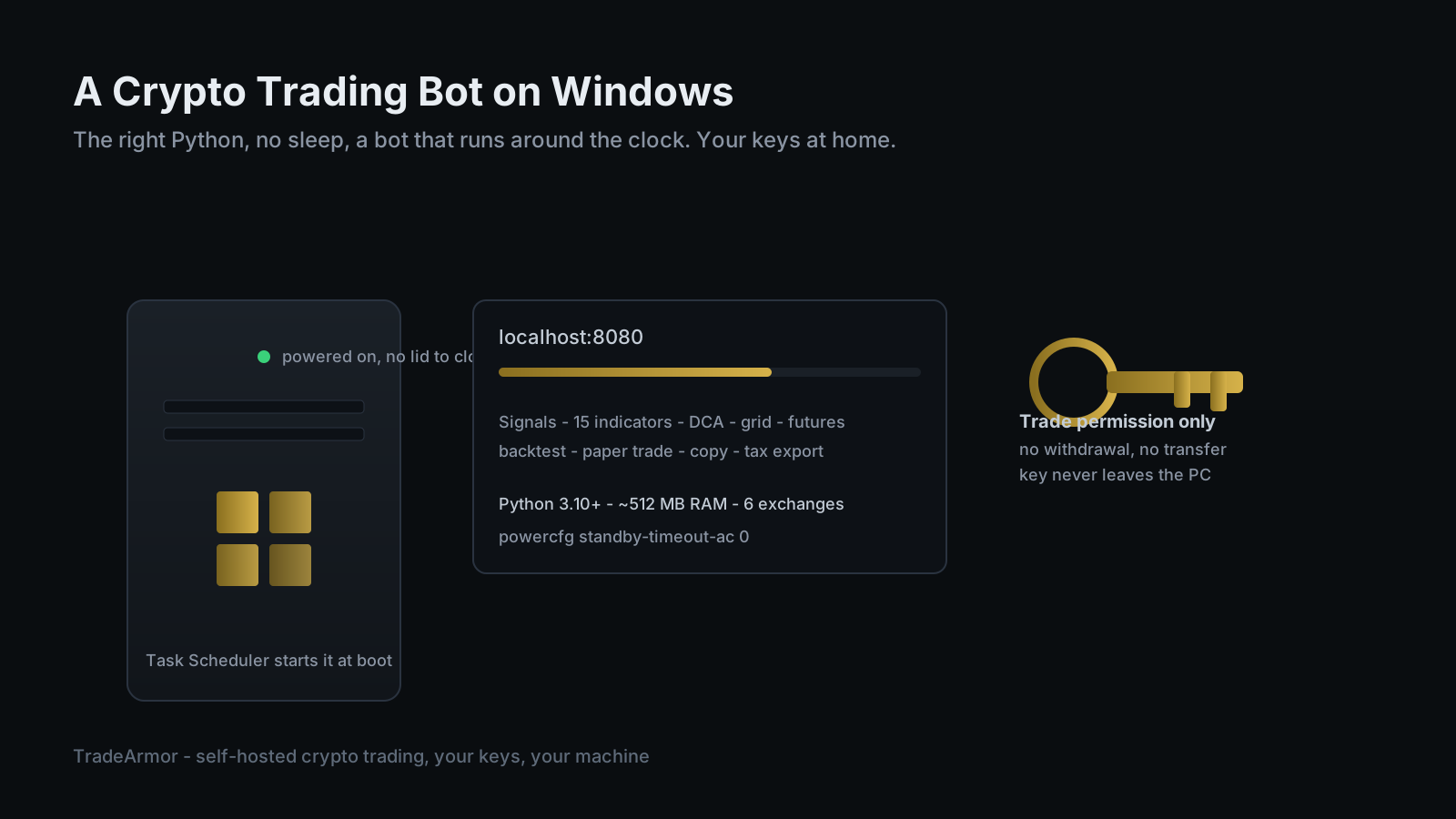
Guides for running a crypto trading bot on Windows barely exist. Most assume you own a Mac, a Raspberry Pi, or that you are comfortable living inside Docker. Meanwhile the machine sitting under your desk, the one that is already powered on most of the day, runs Windows. If you have a strategy, an exchange account, and a Windows PC you keep on anyway, the question is not whether you need to buy new hardware. It is why the bot everyone recommends seems to pretend Windows does not exist. You want something that just runs, on a box you control, without shipping your API keys to a stranger's server.
TradeArmor runs natively on Windows, and that is the point of this guide. It is a self-hosted crypto trading platform: you download it, install it on your own machine, and your exchange API keys never leave that machine. It is not a single-trick DCA bot. It ships built-in BTC/USDC spot signals with a multi-year track record, 15 real-time technical indicators, a plain-English AI strategy builder, plus DCA, grid, futures, copy trading, backtesting, paper trading, and tax exports. Running a crypto trading bot on Windows means running that entire platform on a PC you already own, on power you are already paying for.
There are two Windows-specific traps that will burn an afternoon if nobody warns you, and this guide covers both. Windows will happily let you install two different Pythons and never tell you which one your bot is using. And a Windows PC left alone will put itself to sleep at the worst possible moment. Neither is hard to fix once you know it exists. Most of the pain of running a bot on Windows comes from the machine trying to be helpful.
Why Run a Crypto Trading Bot on Windows at All
Running a crypto trading bot on Windows is not the compromise the homelab crowd makes it out to be. A trading bot is a light workload. It holds a connection to your exchange, waits for a signal or a price trigger, runs some math, and occasionally places an order. TradeArmor's stated requirement is Python 3.10 or newer and about 512 megabytes of RAM, which any Windows PC from the last decade clears without noticing. Your gaming rig will not feel it running in the background.
What the workload actually needs is uptime, and this is where an always-on desktop earns its keep. A bot that is offline when the dip arrives is worse than no bot, because you planned around it being there. Plenty of people already leave a Windows machine on around the clock for game downloads, a media server, or remote access. A bot is one more quiet service on a box that is already running.
The deeper reason is custody. Run the bot on your own PC and your exchange API key sits in a local config file on a machine you can physically touch. It is not in a vendor's database waiting to be breached, which has happened to SaaS bots before and cost their users real funds. If you want the full version of that argument, the best self-hosted crypto trading bot guide lays out the whole case, and the self-hosted vs SaaS breakdown covers the trade-offs. You can see every mode the engine runs on the TradeArmor feature list.
Install the Right Python First (Not the Microsoft Store One)
Here is Windows trap number one, and it produces the strangest errors. Do not install Python from the Microsoft Store. Install it from python.org.
The Store build looks identical, but it runs in a sandbox that quietly breaks secure network calls in the exact code path a trading bot lives in: encrypted requests to your exchange. You will not see the problem at install time. You will see it later, as a connection that fails for no obvious reason, which is the worst kind of bug to chase. TradeArmor works around this internally on Windows, routing exchange calls through a synchronous path in a background thread instead of the async path the Store Python mishandles, but you still want a real Python underneath it.
Download the current Python 3 installer from python.org. During setup, tick "Add Python to PATH." Then confirm it from a fresh Command Prompt:
python --version
If that prints a 3.10 or newer version, you are set. If Windows opens the Store instead of printing a version, the Store alias is intercepting the command. Turn it off under Settings, Apps, Advanced app settings, App execution aliases, and disable the two python entries.
Get TradeArmor Running
TradeArmor ships as a ZIP download, not something you compile. Unzip it, install its requirements, and start it. From a Command Prompt in the unzipped folder:
python -m venv venv
venv\Scripts\activate
pip install -r requirements.txt
python main.py
The virtual environment keeps the bot's packages from colliding with anything else on the system. The last command starts the bot and its dashboard on port 8080. Open http://localhost:8080/setup in a browser and the setup wizard walks you through connecting your exchange and choosing a strategy mode. Six exchanges are supported out of the box, so it does not matter whether you trade on Binance US, Bybit, Coinbase, or another venue.
When the wizard asks for your API key, give it trade permission only. Not withdrawal. Not transfer. A bot needs to place and cancel orders, nothing more, and a key with withdrawal rights is a key that can drain the account if anything ever goes wrong. This is not a Windows detail, it is the whole self-custody argument compressed into one setting, and it is covered in depth in the guide on running a crypto trading bot without API key risk.
Keep It Awake: Windows Sleep and Power Settings
Windows trap number two. By default a Windows PC goes to sleep after a stretch of inactivity, and a sleeping PC is a bot that clocked out without telling you. The process did not crash. The machine took a nap, and the order that should have fired did not.
Disable sleep while the PC is on power. The fast version, from an administrator Command Prompt:
powercfg /change standby-timeout-ac 0
powercfg /change hibernate-timeout-ac 0
That sets the sleep and hibernate timers to zero, which means never, while the machine is plugged in. You can do the same under Settings, System, Power, but the command is faster and easier to verify. While you are thinking about outages, most desktop BIOS menus have an "AC power recovery" or "restore on power loss" setting. Turn it on, so a brief power blip restarts the PC instead of leaving your bot dark until you happen to walk past it.
Run It 24/7 With Task Scheduler
Starting the bot with python main.py works until you close the window, reboot, or the process exits once overnight. Then it is simply off, and you find out when the move you wanted has already happened. On Windows, the tool for a proper background service is Task Scheduler, the same scheduler that runs Windows' own maintenance jobs.
TradeArmor includes a Windows service installer that registers the task for you, so you do not have to hand-build it in the Task Scheduler interface. However you set it up, three settings matter:
- Run whether the user is logged on or not, so the bot survives a sign-out.
- Run with highest privileges, so it can write its own files.
- Restart the task if it fails, so a one-off crash self-heals instead of leaving you offline.
There is one Windows quirk worth knowing about updates. Windows locks the files of a running program, so a bot cannot overwrite its own code while it is running. TradeArmor handles this with a deferred update: it stages the new files, then a small batch script swaps them in after the bot stops and relaunches it. You do not manage that by hand. If you ever see the bot briefly stop and come back during an update, that is the reason, not a fault.
What You Actually Run Once It Is Up
With the bot online and set to restart on boot, the Windows part is done and the trading part begins. This is where treating TradeArmor as one platform instead of a single feature pays off. The same instance runs the built-in BTC/USDC signals, the 15 indicators, gated DCA, grid, and futures, and it will paper-trade any of them first so you can watch the logic play out before a cent is at risk. Backtest a strategy against historical data, then let it run live on the same machine. When tax season arrives, the export turns a year of fills into a clean file for your accountant, which is a better use of an evening than reconciling exchange CSVs by hand.
If you later want to move the bot off your desktop and onto dedicated hardware, the same platform runs on a Mac mini or a Raspberry Pi with almost the same steps. The install target changes. The engine does not.
Running a crypto trading bot on Windows comes down to two honest fixes and one principle. Install real Python, keep the machine awake, and never let your API keys leave the PC you control. Do that, and a Windows box you already own becomes a self-hosted trading operation that runs your rules around the clock, on your hardware, with your keys at home.
See the plans and download the platform at TradeArmor pricing.